Apply and manage shift change requests with greytHR’s Request Hub
Updated in November - 2025 | Subscribe to watch greytHR how-to video
The Shift Change Workflow in greytHR allows both employees and managers to request or initiate changes to work shifts in a structured and transparent way. As the initiator, you can raise a request for yourself or on behalf of your team, ensuring that shift changes are properly tracked, reviewed, and approved without confusion or manual follow-ups.
Apply for a shift change for self
As an employee, you can raise a request to change your work shift directly from the greytHR ESS portal. You can request a single-day, single-shift change, a single-shift change across multiple days, or multiple-shift changes across multiple days, depending on your requirement.
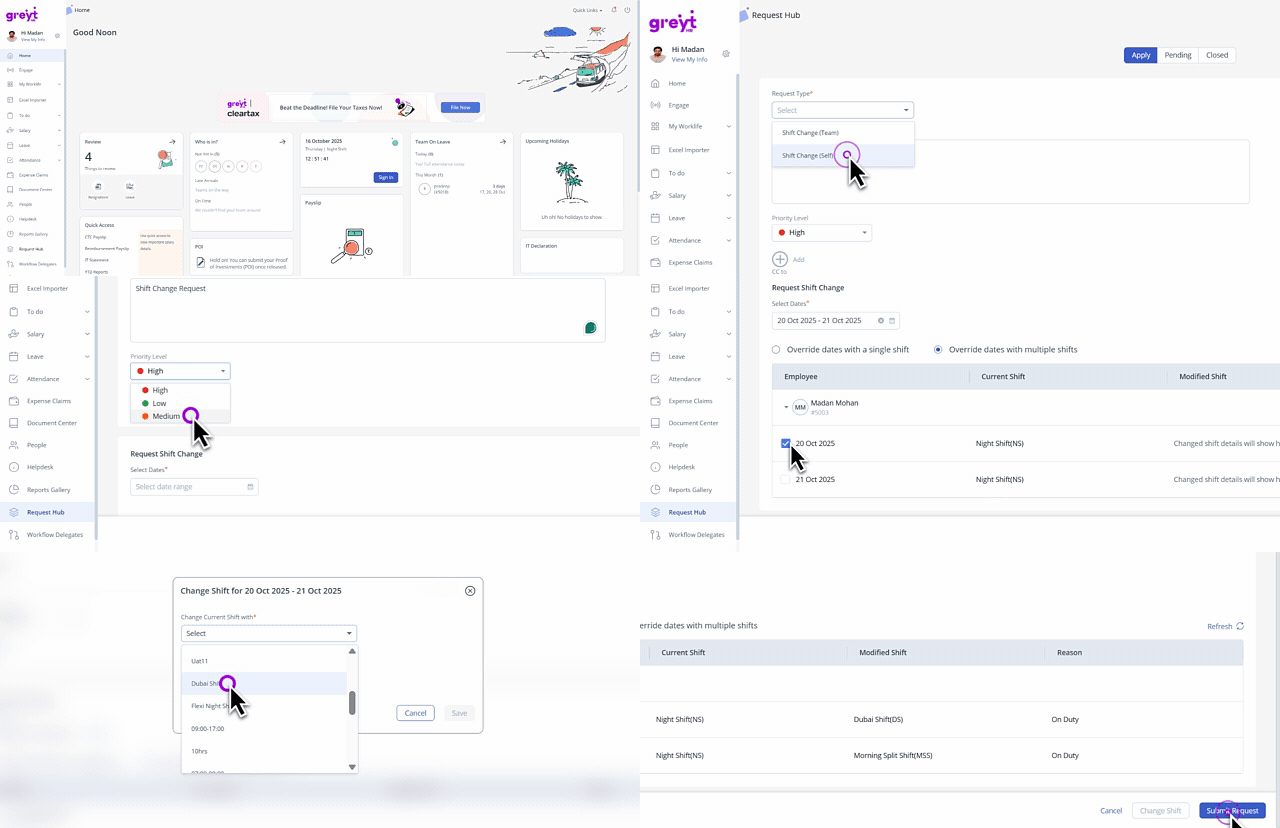
Go to Request Hub, select the Request Type as Shift Change (Self).
Add Remarks, set the Priority Level, and add a CC if you want to inform another employee about the request.
Complete the task, if any, fill out the form, Mark as completed, and save the changes.
Select the date(s) from the Request Shift Change option. You can select multiple or a single date as per the requirement.
Select Override dates with a single shift if you want to apply a single shift change across all the selected dates.
Select Override dates with multiple shifts if you want to apply for multiple shift changes across all the selected dates.
Select the required dates and click Change Shift. The Change Shift window opens.
If you want to raise multiple-shift changes across multiple days, you need to select the individual/required dates.
You can also select all the dates together to take a bulk action if you want to request a single shift change.
From the Change Current Shift with dropdown, select the required shift. Enter the reason if needed and click Save.
Once done, click Submit Request.
Note: Before submitting the request, you can make changes multiple times as needed.
Info:
After submitting the request, it automatically moves to the Pending tab, where you can easily track its current status, view the timeline, and withdraw the request.
If the request is withdrawn, approved, or rejected, it moves to the Closed tab.
Apply for a shift change for team members
To raise a shift change request for your team member(s), log in to the greytHR ESS portal and click Request Hub.
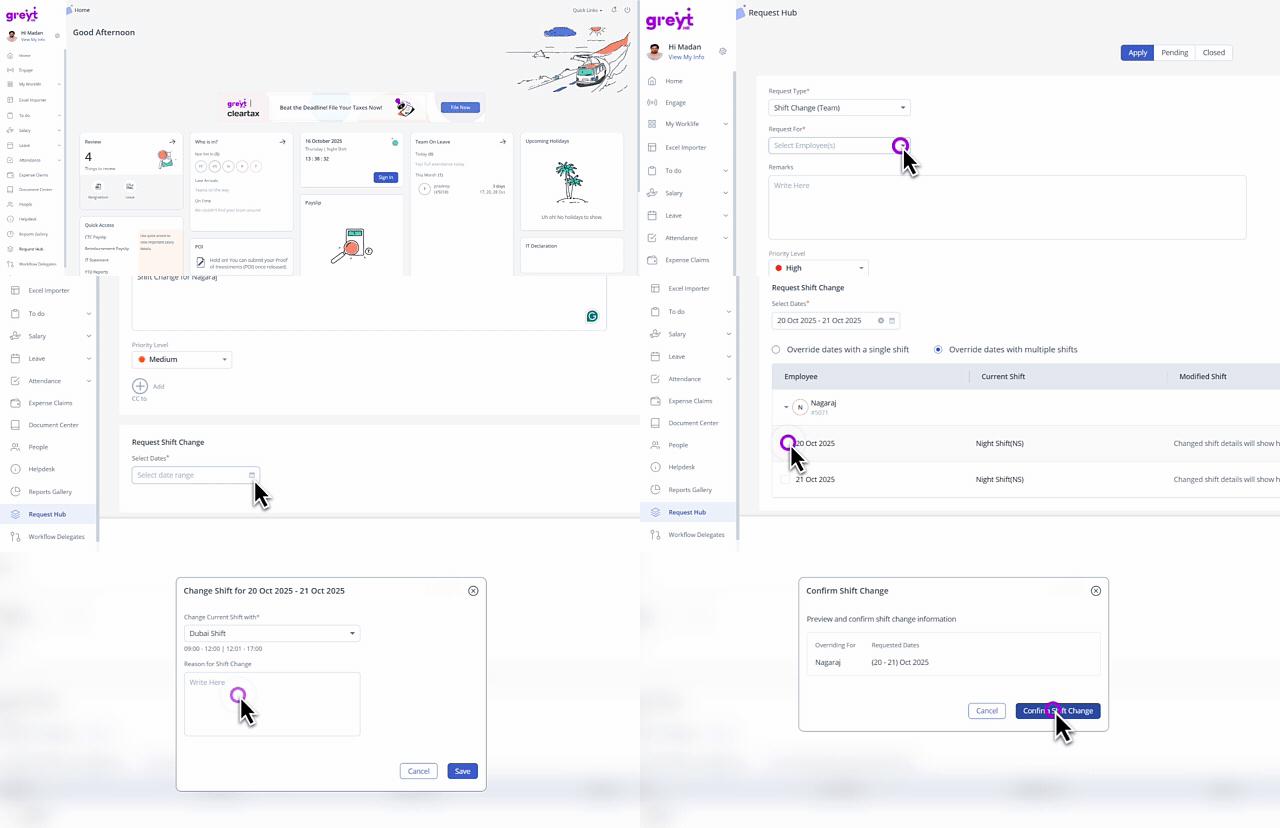
Select the Request type as Shift Change (Team) and the name of the team member.
Note: To raise requests for multiple team members, you can select the team members from the Request For dropdown. The system raises separate requests for each selected team member.Add Remarks, and set the Priority Level.
Complete the task, if any, fill out the form, Mark as completed, and save the changes.
Select the date(s) from the Request Shift Change option. You can select multiple or a single date as per the requirement.
Select Override dates with a single shift if you want to apply a single shift change across all the selected dates.
Select Override dates with multiple shifts if you want to apply for multiple shift changes across all the selected dates.
Select the required employee(s), the date(s), and click Change Shift. The Change Shift window opens.
If you want to raise multiple-shift changes across multiple days for more than one employee, you need to select the individual/required dates and the employees for whom you want to change the shift.
From the Change Current Shift with dropdown, select the required shift. Enter the reason if needed and click Save.
Once done, click Submit Request.
Review employees’ shift change requests
As a reviewer, to review the shift change requests, go to To-do > Review > Request Hub.
Select the required team member’s request. You can also use the Select All checkbox to take bulk actions.
Click View Details to view the shift change request in detail.
Complete the assigned task, if any, fill out the form, Mark as Completed, and click Save Changes.
Use the ✓ (green check) to approve and the ✕ (grey cross) to reject.
Add Remarks if needed and select the available action: Submit/Submit and Forward/Cancel.
Frequently Asked Questions
What is the shift change workflow in greytHR?
The Shift Change Workflow in greytHR allows both employees and managers to request or initiate changes to work shifts in a structured and transparent way.
Who can raise a shift change request?
Both employees and managers can raise shift change requests. Employees can request changes for themselves, while managers can raise requests both for themselves and their team members.
Can I raise a shift change request for multiple days?
Yes. You can raise a request for a single day, multiple days with the same shift, or multiple days with different shifts.
How do I apply for a shift change for myself?
You can request a shift change through the greytHR ESS portal's Request Hub. Here are the steps:
Navigate to Request Hub and select Shift Change as the request type.
Add any necessary Remarks and set the Priority Level. You can also add a CC to inform another employee.
Complete the task, if any, fill out the form, Mark as completed, and save the changes.
Select the date(s) from the Request Shift Change option. You can select multiple or a single date as per the requirement.
Select Override dates with a single shift if you want to apply a single shift change across all the selected dates.
Select Override dates with multiple shifts if you want to apply for multiple shift changes across all the selected dates.
Select the required dates and click Change Shift. The Change Shift window opens.
If you want to raise multiple-shift changes across multiple days, you need to select the individual/required dates.
You can also select all the dates together to take a bulk action if you want to request for a single shift change.
From the Change Current Shift with dropdown, select the required shift. Enter the reason if needed and click Save.
Once done, click Submit Request.
Note: Before submitting the request, you can make changes multiple times as needed.
Can I make changes to a request after I've submitted it?
No, you can only make changes to a request before you click the Submit Request button. Once it's submitted, you can only track its status or withdraw it if it's still pending.
How do I track the status of my request?
After you submit a request, it automatically moves to the Pending tab in Request Hub. Here, you can easily check its current status, view the timeline of actions, or even withdraw the request if needed. Once the request is approved, rejected, or withdrawn, it moves to the Closed tab.
Can I apply for a shift change for my team members?
Yes, managers can initiate shift change requests for their team members. To raise a shift change request for your team member(s), log in to the greytHR ESS portal and click Request Hub.
Select the Request type as Shift Change and the name of the team member.
Note: To raise requests for multiple team members, you can select the team members from the Request For dropdown. The system raises separate requests for each selected team member.Add Remarks, and set the Priority Level.
Complete the task, if any, fill out the form, Mark as completed, and save the changes.
Select the date(s) from the Request Shift Change option. You can select multiple or a single date as per the requirement.
Select Override dates with a single shift if you want to apply a single shift change across all the selected dates.
Select Override dates with multiple shifts if you want to apply for multiple shift changes across all the selected dates.
Select the required employee(s), the date(s) and click Change Shift. The Change Shift window opens.
If you want to raise multiple-shift changes across multiple days for more than one employee, you need to select the individual/required dates and the employees for whom you want to change the shift.
From the Change Current Shift with dropdown, select the required shift. Enter the reason if needed and click Save.
Once done, click Submit Request.
What's the difference between applying a single shift versus multiple shifts across dates?
Override dates with a single shift applies the same new shift to all the dates you have selected. For example, if you've selected three different dates, this option will change your shift to the new one for all three of those days.
Override dates with multiple shifts lets you apply different shifts to the dates you've selected. For example, you could change your shift to a morning one on Monday and an evening one on Tuesday, all within the same request.
How do I review a shift change request?
As a reviewer or manager, you can review requests from the To-do section.
Go to To-do > Review > Request Hub.
Select the team member's request you want to review. You can also use the Select All checkbox to approve or reject requests in bulk.
Click View Details for a closer look.
Use the green checkmark (✓) to approve or the grey cross (✕) to reject the request.
Add any remarks and choose an action, like Submit or Submit and Forward.
Related articles:
Was this article helpful?
More resources:
▶ Video - Watch our how-to videos to learn more about greytHR.