Set up Geofence Auto Sign-in in greytHR mobile app
Updated in July -2026 | Subscribe to watch greytHR how-to video
Marking attendance manually every day can sometimes lead to missed swipes, incorrect timestamps, or delays in attendance records. To make attendance tracking easier, greytHR provides Geofence Auto Sign-in in the mobile app.
With this feature, attendance is automatically captured when you, as an employee enter or leave a configured work location. Once your organization enables Geofence Auto Sign-in for your attendance scheme, the greytHR mobile app automatically records your sign-in and sign-out when your device enters or exits a configured work location.
Key highlights
Automatically signs you in/out when you enter/leave a configured work location.
Eliminates missed attendance swipes.
Supports multiple work locations.
Available on both Android and iOS versions of the greytHR mobile app.
Attendance entries are visible in Attendance Info and reports.
Before you can use Geofence Auto Sign-in, your organization must enable the feature for your attendance scheme and share an access code with you. You must also enable location permissions on your device.
How Geofence Auto Sign-in works
Geofence Auto Sign-in uses a virtual location boundary called a geofence around a configured work location.
When your device enters the configured location:
The app automatically records your sign-in.
When your device exits the configured location:
The app automatically records your sign-out.
The app only captures entry and exit events required for attendance marking. It does not continuously track your location.
Set up Geofence location as an employee
To configure your work location:
Open the greytHR mobile app.
Tap the Profile icon.
Tap Setup Geofence.
Enter the access code shared by your organization.
Enter the location name.
Set the location radius.
Tap Submit.
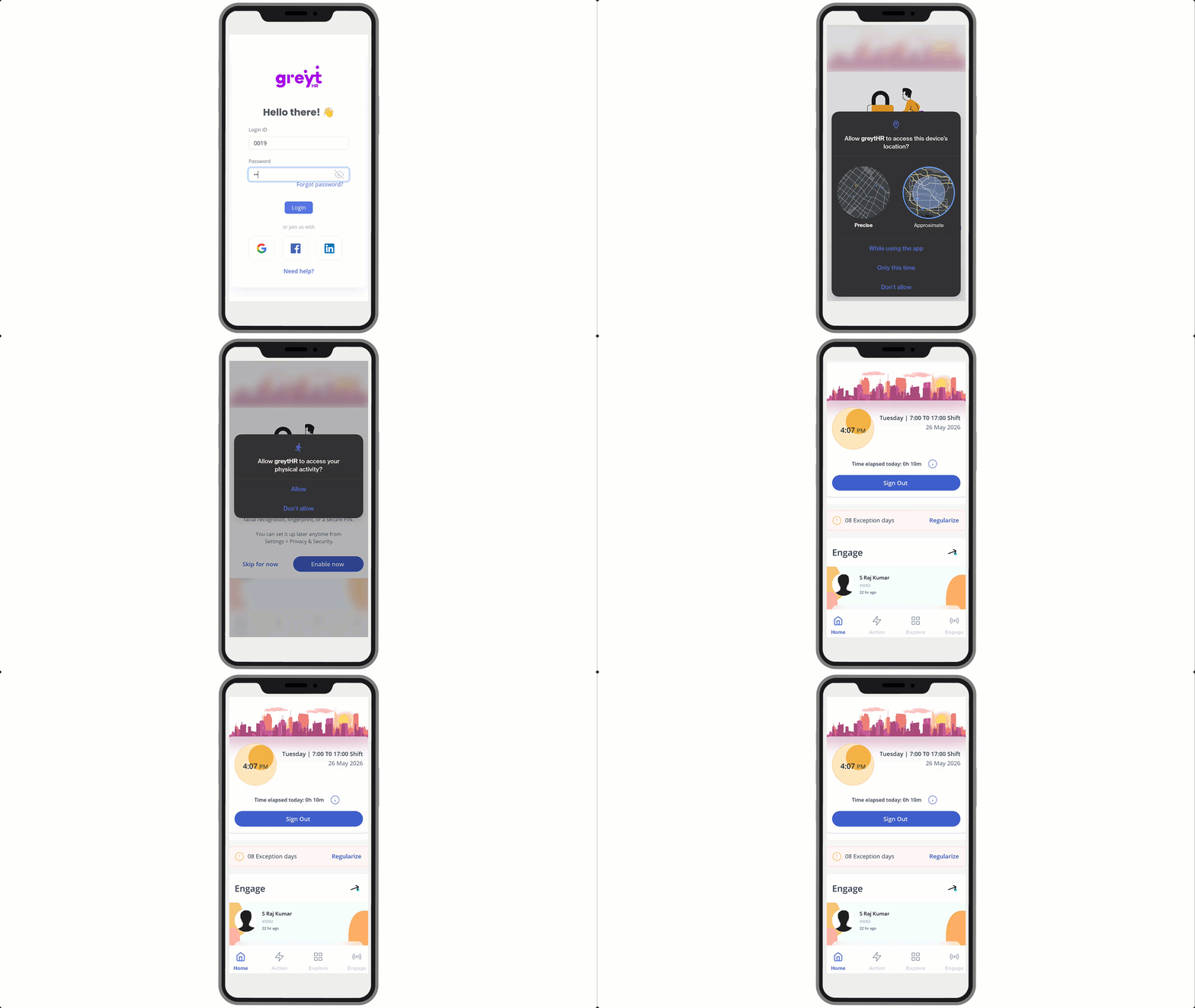
The location is now active for automatic attendance marking.
Note: You can configure multiple geofence locations — useful if your organization has multiple approved work locations. Access codes should be sent by Admin users from the setup guide page.
Attendance capturing with Auto Geofence
After setup:
Entering a configured work location radius automatically signs you in /out.
Leaving the location radius automatically marks your sign-out.
You can view attendance details from the home screen and Attendance Info page in the greytHR mobile app.
Note: The app should be running in the background. The internet should be ON.
Configure device permissions and settings
For accurate attendance capture, configure the following settings on your device.
Android
Location permission: Allow all the time
Precise location: On
Battery optimisation for greytHR app: Disabled / Unrestricted
Device location services: On (High accuracy)
iOS
Location permission: Always
Precise Location: On
Background App Refresh: On
What’s supported with Auto Geofence
Automatic sign-in when entering a configured work location.
Automatic sign-out when leaving a configured work location.
Support for configuring multiple work locations.
Attendance visibility in Attendance Info and reports.
Availability on Android and iOS versions of the greytHR mobile app.
What’s not supported with Auto Geofence
Continuous live location tracking.
Web-based attendance marking.
Selfie capture or face recognition along with automatic sign-in.
Manual sign in or sign out in Mobile app
Frequently Asked Questions:
What is Geofence Auto Sign-in in greytHR?
Geofence Auto Sign-in is a mobile attendance feature that automatically signs employees in when they enter a configured work location and signs them out when they leave.
How is Geofence Auto Sign-in different from regular Geofence attendance?
With regular Geofence attendance, employees must manually mark attendance after entering the configured location.
With Geofence Auto Sign-in, attendance is captured automatically when entering and exiting the configured location.
How do I set up Auto Geofence Attendance?
From the greytHR mobile app:
Profile icon → Setup Geofence
Enter the access code shared by your organization, configure the location details, and tap Submit.
Why is the Setup Geofence option not visible in my app?
The Setup Geofence option appears only if your organization has enabled Geofence Auto Sign-in or Geo Fencing for your attendance scheme.
How long is the access code valid?
The access code is valid for 3 days from the time it is generated. If the code expires, contact your organization for a new access code.
Can I configure multiple work locations?
Yes. You can configure multiple work locations as required.
What happens if device location is turned off?
If location services are turned off, the app cannot detect entry or exit events. Automatic attendance marking will remain paused until location access is enabled.
Why is there sometimes a delay in attendance capture?
Location detection depends on device operating system checks, which happen periodically to save battery. Because of this, there may be a short delay in sign-in or sign-out capture.
To improve accuracy:
Enable Always / Allow all the time location access.
Disable battery optimisation for the greytHR app on Android.
Enable Background App Refresh on iOS.
Avoid using very small location radii.
Will Geofence Auto Sign-in increase battery usage?
No. The feature uses native device geofencing services that are optimized for minimal battery usage.
Does Geofence Auto Sign-in track my live location?
No. The app only captures attendance events when you enter or leave a configured work location. It does not continuously track your movement.
Is Geofence Auto Sign-in available on Android and iOS?
Yes. The feature is supported on both Android and iOS versions of the greytHR mobile app.
Can Geofence Auto Sign-in work with selfie capture or face recognition?
No. Since attendance is captured automatically, selfie capture and face recognition are not supported with this method.
What should I do if Geofence Auto Sign-in stops working?
Check the following:
Ensure the greytHR app is updated to the latest version.
Verify that location permission is set to Always / Allow all the time.
Ensure device location services are enabled.
On Android, confirm battery optimisation is disabled for the greytHR app.
On iOS, ensure Background App Refresh is enabled.
If the issue continues, contact your organization’s support team with your device model, OS version, and affected location details.
Related article:
Ensure accurate attendance marking by configuring Geofence
Was this article helpful?
More resources:
▶ Video - Watch our how-to videos to learn more about greytHR.
❓ FAQs - Solve your queries using FAQs.