Track/View your work time duration on the greytHR mobile app
Updated in December-2025 | Subscribe to watch greytHR how-to video
Tracking your daily working hours is now easier with the Elapsed Timer feature on the greytHR mobile app. This timer displays the total time that has passed since your first sign-in of the day, helping you stay aware of how much time has passed since starting your workday without any manual effort.
The timer updates in real time and starts from the earliest available IN timestamp recorded across all platforms—mobile, web, kiosk, or biometric. It ensures transparency, enhances self-awareness, and helps employees manage their workday effectively.
Key highlights of the Elapsed Timer
Shows real-time time since the first sign-in of the day.
The timer automatically stops at sign-out and restarts on the next sign-in in case of multiple Sign-In/Out.
Displays time in HH:MM format for easy understanding.
Fully backend-synced to ensure accurate time tracking even after app restart or network issues.
Applies to all attendance setups, auto shift, multiple or split shift, cross midnight shifts, shift change mid-day, weekends/ holiday.
Visibility only — no alerts or shift validation messages are triggered.

View your elapsed time
Log in to the greytHR mobile app
Tap Sign In.
Once the sign-in is successful, the Elapsed Timer will automatically show on the home screen on the widget.
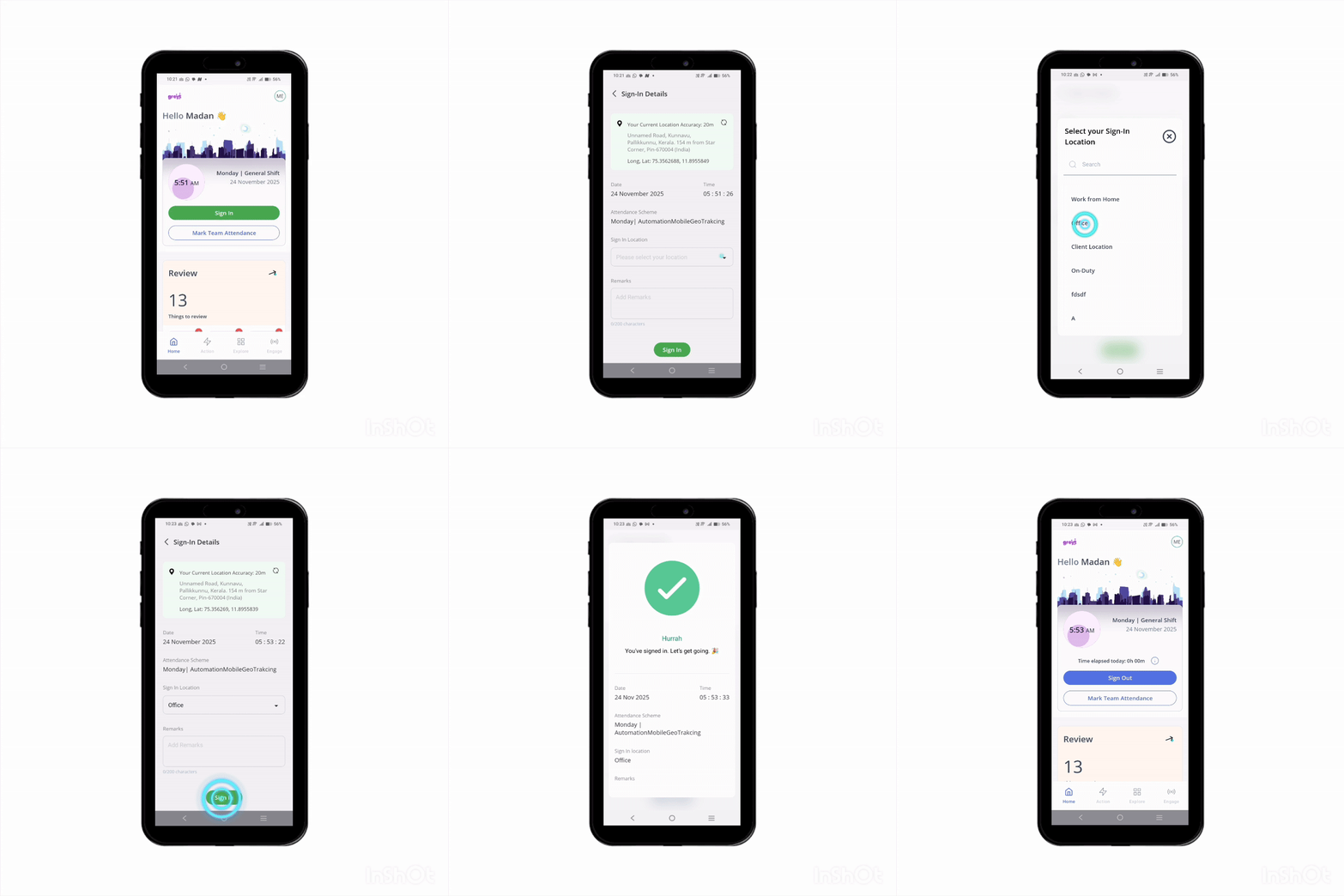
Note: If you sign in again on the same day, the timer resumes from the first sign-in time, not the most recent one.
Additional information
Multiple platforms: If you sign in using biometric, mobile, or web, the timer starts from the earliest valid IN punch.
Auto-shift users: The timer begins from the IN time based on the auto-detected shift.
Devices without IN/OUT indicators: The app only uses valid IN swipes. If the first swipe is an OUT, the timer will not start.
Offline mode: If the network is lost, the timer may show cached data and will correct itself after reconnection.
Split shifts:The timer resets for each shift session and runs independently.
Example: If an employee works a split shift from 9:00 AM–1:00 PM and then 3:00 PM–7:00 PM, the timer will show elapsed time only for the current session. It will reset at 3:00 PM when the second shift starts.Cross-midnight shifts:The timer continues smoothly past midnight until the shift ends.
Example: If a shift starts at 8:00 PM and ends at 4:00 AM, the elapsed timer will keep running past 12:00 AM without resetting, showing the total time from 8:00 PM onwards.Missed sign-out: If the previous day’s sign-out is missing, the system auto-closes it, and the timer starts fresh the next day.
Configuration disabled by admin: If the admin turns off the feature, the timer hides on the next refresh.
App restart/reinstallation: The timer always resumes correctly using backend data.
Frequently Asked Questions
What is the Elapsed Timer?
The Elapsed Timer shows how long you have been signed in for the day, starting from your first valid IN swipe. It appears on the mobile app as a live counter in hours and minutes.
When does the Elapsed Timer start?
The timer begins after your first valid IN swipe of the day. It uses the earliest IN swipe recorded across all available swipe capture methods—such as biometric devices, web sign-in, or the mobile app.
How can I view elapsed time on the greytHR mobile app?
After you complete your first sign-in of the day, the Elapsed Timer will appear on your Home screen.
Log in to the greytHR mobile app
Tap Sign In.
Once the sign-in is successful, the Elapsed Timer will automatically show on the home screen on the widget.
What happens in case of biometric devices without IN/OUT indicators?
If the biometric device does not mark swipes as IN or OUT, the system interprets the swipe direction using internal logic:
If an IN swipe is identified, the timer starts.
If all swipes are treated as OUT, the timer will not start.
When does the Elapsed Timer stop or reset?
The timer stops when you perform a valid OUT swipe.
If you forget to sign out, the timer resets automatically during the daily attendance processing cycle.
Why do I see the Elapsed Timer only after signing in?
The timer shows the time passed since the first sign-in of the day. It becomes visible only after attendance is registered.
Does the timer use phone time or server time?
The timer always uses server time. It updates every minute based on backend data and corrects itself automatically when:
The network reconnects after being offline, or
When you restart or reinstall the mobile app.
Which swipe is considered when multiple methods are used?
The system always picks the earliest valid IN swipe of the day (or for each session in split shifts), regardless of the method used.
Example:
Biometric IN: 9:05 AM
Mobile Manual IN: 9:10 AM
→ The timer starts from 9:05 AM
If biometric swipes sync late, the timer adjusts itself automatically once the earlier swipe reaches the server.
Does the timer work with all shift types?
Yes. The Elapsed Timer supports:
General shifts
Auto-shifts: The shift is determined based on the earliest valid IN swipe.
Split shifts: Each session has its own timer.
Cross-midnight shifts: The timer continues past midnight until sign-out or resets during daily processing.
Will shift changes affect the timer?
No. Even if your shift is changed mid-day by the admin, the timer continues from your first sign-in time.
Does the elapsed timer show seconds?
No. The elapsed timer is displayed only in the HH:MM format. It does not show seconds, ensuring a clean and easy-to-read display for employees.
How does the timer work for split shifts?
For split shifts (e.g., 9 AM–2 PM and 3 PM–9 PM):
Session 1: The timer starts at the first valid IN of session 1 and runs until the OUT swipe for session 1.
Session 2: The timer starts at the first valid IN of session 2 and runs until the OUT swipe for session 2.
Each session has a separate timer and works independently.
Does the timer work on weekends or holidays?
Yes. If you sign in on a weekend or holiday where a shift is assigned, the timer works normally.
Can I disable the Elapsed Timer?
No. This is a system-driven feature and cannot be disabled by employees. Admins can control the configuration, and visibility will update accordingly.
What happens if my phone goes offline or I restart/reinstall the app?
Offline: The display may freeze or show cached time temporarily. Once you're online, the app syncs with the server and shows the correct timer value.
Restart/Reinstall: The timer is never lost. It is rebuilt from backend timestamps and resumes with the correct duration.
Related Article:
View your swipe details in greytHR mobile app
Was this article helpful?
More resources:
▶ Video - Watch our how-to videos to learn more about greytHR.